A reference and your video.
Choose the videos you want to understand. Use material you have permission to work with.
02 / COMPARE
Put the reference beside your own edit. Compare the choices behind each one, from the opening frames to the way the story unfolds.
This authentic capture shows the selection screen, before a comparison is run.
LOOK AT THE CHOICES
Move the divider to explore the same source in two compositions. A useful first question: where does your attention go?
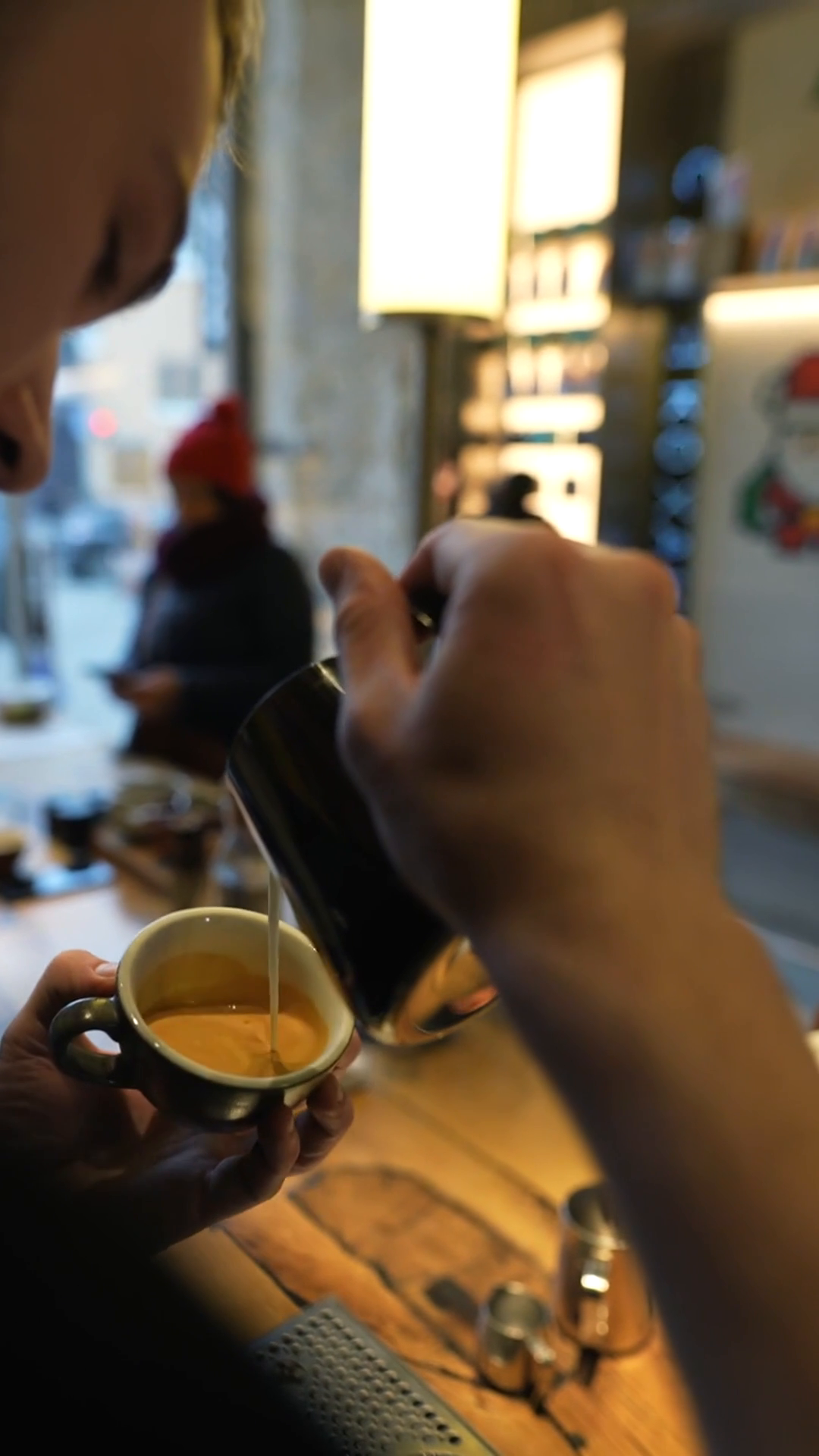
The crop decides which details stay in view. The timing decides how long they matter. Use comparison to ask better questions of your own edit.
Interactive website framing example, using the same source image. This is not an app comparison result or a performance score.
Choose the videos you want to understand. Use material you have permission to work with.
Review the differences in context, with the original footage available to check the interpretation.
A tighter opening. A clearer composition. A different hold. Bring a specific direction back to your next cut.
YOUR NEXT VIDEO STARTS HERE
Understand the reference. Make the cut. Find the words.
Bring it all together in FrameScope.
ONE WINDOWS WORKSPACE. SIX CREATIVE STORIES.
Understand what works. Shape the next cut. Make every word count.
Analysis, comparison, Shorts, subtitles, voice and publishing — together.
Demo allowances renew in fixed 30-day periods. Internet verification and optional external AI fees apply.
Actual FrameScope recordings · English interface · Demo media · Playback starts when you choose.
There’s a reason a video holds your attention. Look inside its story, rhythm, camera, color and sound. Turn what you discover into a direction for your own work.
Decode the creative pattern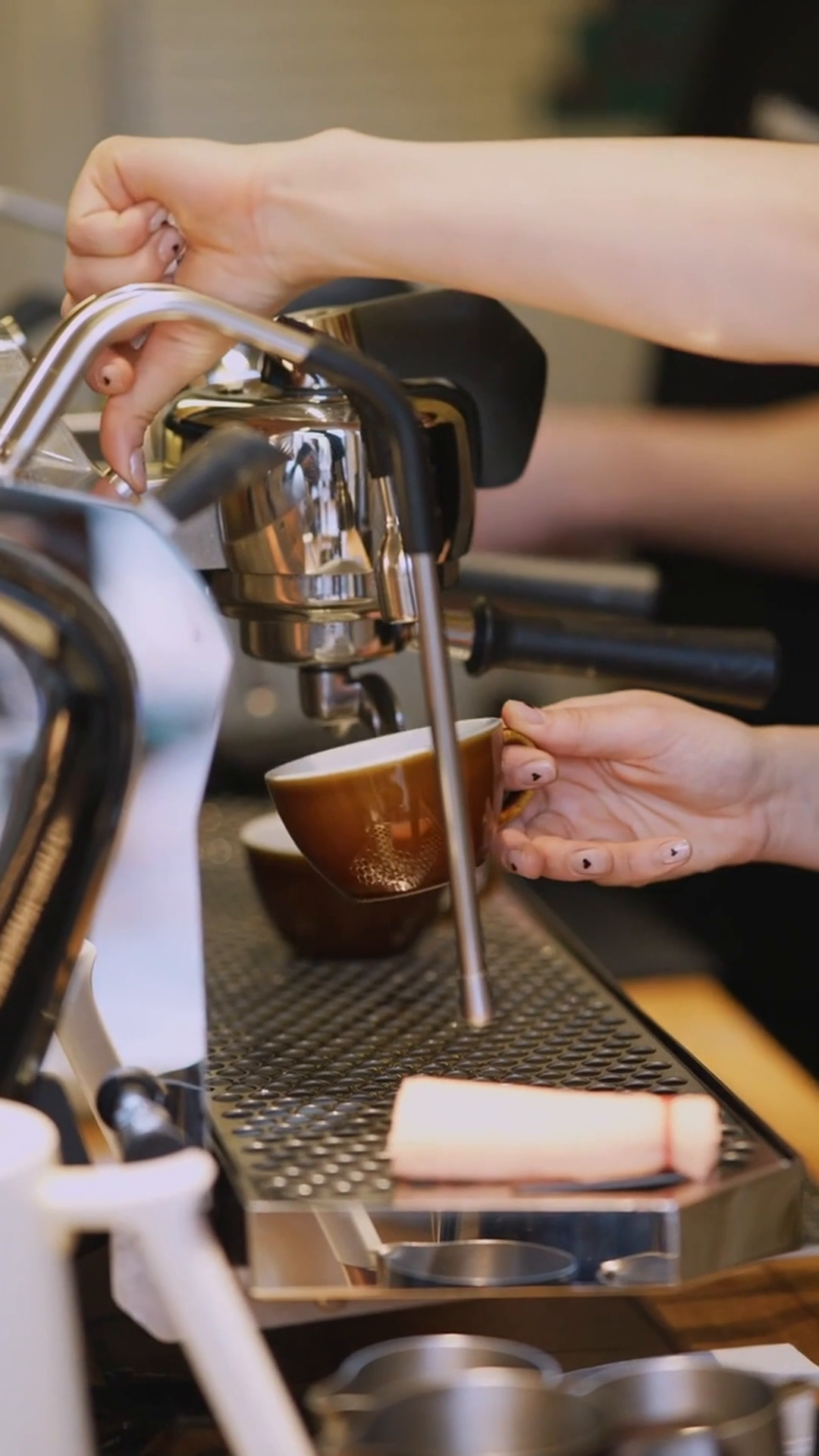
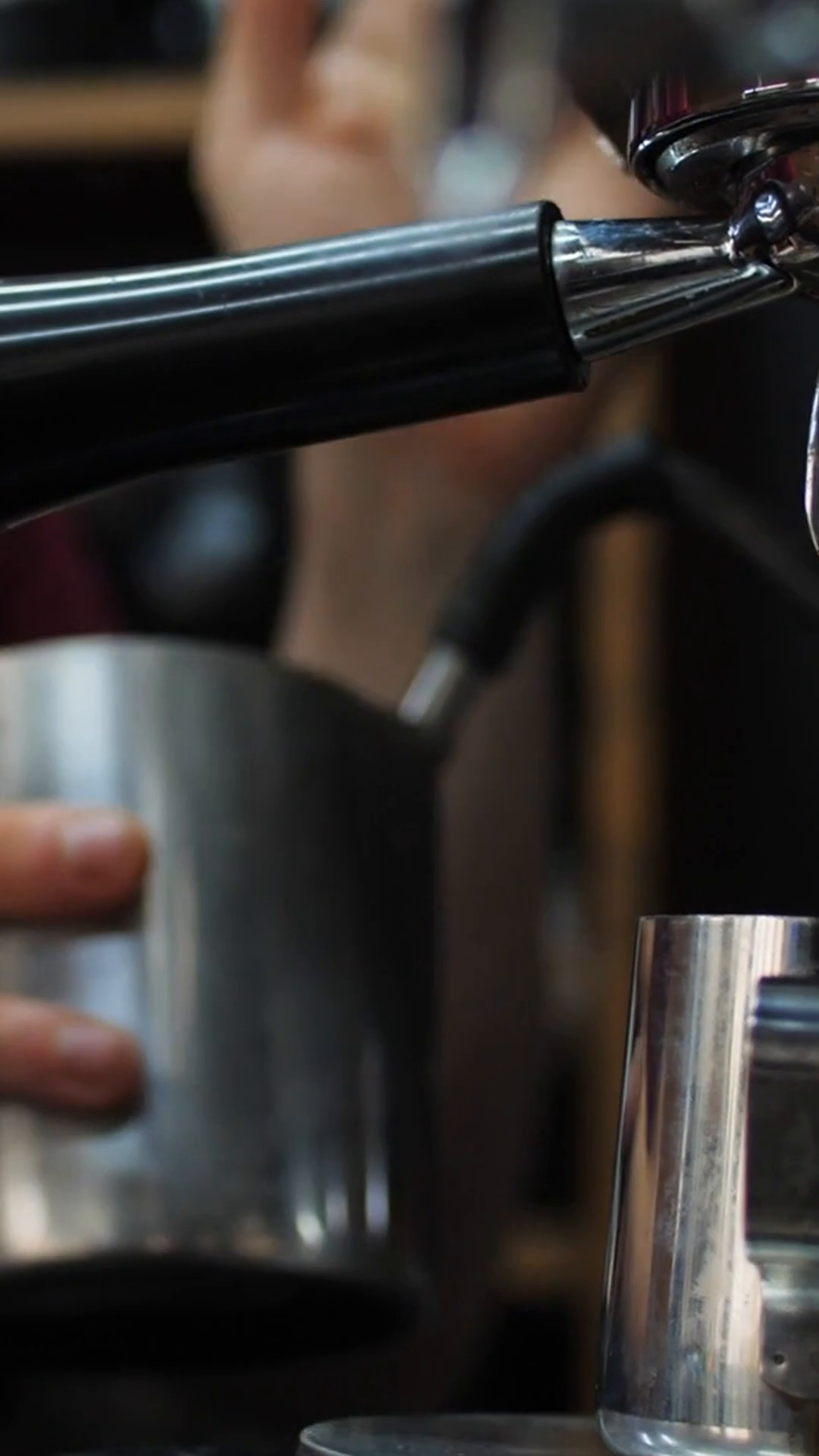
Original coffee example from the saved FrameScope report.
2 candidate hard cuts. 3 shots in 9.0 seconds.
Average shot length: 3.00s.
A warm-leaning palette, with saturation around 28/100.
A detailed close-up of an espresso machine as it dispenses coffee into a pitcher.
Timing and color are local measurements. The hook is an AI interpretation. Saved report excerpts from the supplied coffee example.
Your next move
Use roughly 3.0-second shots as a starting rhythm; vary them for your story.
Ask for a warm-leaning palette and use the reference frame to guide color choices.
Start with a focused, dynamic close-up that establishes visual clarity in the action sequence.
Create elsewhere
The complete saved prompt, including the timed sequence, camera, light and continuity directions. FrameScope prepares the prompt; your external AI generator creates the video.
Put the reference beside your own work. Compare the choices behind each edit and find a direction worth trying.
See them side by sidePull out the moment. Own the frame. Give it the cut it deserves. Trim, reframe and prepare a vertical version in the same workspace.
Build your ShortA little room to play
Interactive website style sample. Explore the real preset gallery.
Put your words where people can see them. Choose a bold subtitle style or create your own. Refine the text, timing and movement until the words belong in the picture.
Make every word visibleGive them a version they can understand. Translate your transcript and create a voice track in a supported language with FrameScope.
Break the language barrierEngine and language support vary. Review the transcript and generated speech.
Your videos are ready. Stop spending your day on upload screens. Prepare your releases and set your schedule in FrameScope.
Platform access and review apply. Meta / TikTok availability is conditional; local schedules need the app and computer running.
YOUR MACHINE. YOUR CHOICES.
Keep your creative tools together. Choose the engine that makes sense for the task.
Find your setupA LITTLE CLARITY ON PRICE
Start with Demo. Explore the Full license when you’re ready.
A recurring allowance to try the workflow.
No card needed to download.
Account sign-in and internet verification apply.
One-time perpetual license.
One user. One computer at a time.
Before tax. External AI provider fees are separate.
Demo is a recurring allowance, not a 30-day free trial. Subtitles include 10 clean source videos plus 10 additional sources with branded Demo exports per period. See the complete Demo terms.
GOOD TO KNOW
FrameScope is a Windows desktop workspace for video analysis, comparison, Shorts editing, subtitles, voice / localization and publishing preparation. Music and audio tools support that workflow.
No. Demo allowances renew in fixed, account-anchored 30-day periods. Each listed feature has a separate allowance of 10 successful results. Subtitles have 10 clean source videos plus 10 additional sources with branded Demo exports. Imports do not spend these allowances.
See the complete terms for counting, reservations and renewals.
A one-time perpetual Full license for one user on one computer at a time. There is no recurring FrameScope subscription. Applicable tax is additional; optional external AI provider fees are separate.
The license does not promise unlimited cloud AI or lifetime updates. Review pricing.
Yes. CPU measurements, Shorts editing and local export work without an AI subscription or downloaded AI models. You can add supported local models or connect your own AI provider when you need them. Account and license verification still require internet access.
The desktop application is for 64-bit Windows 10 or 11. Local AI requirements vary by engine, model and driver. For the documented local Voice engine, allow a supported Ampere-or-newer NVIDIA GPU with at least 8 GB VRAM, 16 GB RAM and 15 GB installation space.
Read the requirements and each engine's checks before installing optional models.
Signing in does not upload your local video library. Optional AI-provider tasks and social publishing send the material needed for the action you select. Provider terms and costs apply. Keep your own backups of local media.
FrameScope can prepare a detailed video-generation prompt based on the analysis. You copy it into an external AI video generator to create the video. The video is rendered in the generator you choose.
FrameScope includes YouTube publishing tools. Facebook Pages and Instagram professional accounts depend on access and platform review; TikTok is subject to tester or sandbox access. Connections require your consent. Local Meta/TikTok schedules require FrameScope and the computer to remain running.
Check the publishing details before planning a release.
Yes. The product captures come from FrameScope's official website and the supplied brand book or public manual. They show genuine interfaces using demo or practice media. The caption-style and framing explorers are labeled interactive website examples.
Language availability depends on the engine you select. Review your transcript and the generated speech before export. The currently documented local Voice engine does not support Georgian speech. See the app and manual for the supported languages.
Use the contact page for support and the refund policy for eligibility and request details. Privacy and deletion requests do not require a paid license.
YOUR NEXT VIDEO STARTS HERE
Understand the reference. Make the cut. Find the words.
Bring it all together in FrameScope.
01 / ANALYSIS
A compelling opening. A rhythm that feels right. A shot you remember. Go beyond “I like this” and understand the creative choices behind the reference.
FROM A REAL SAVED REPORT
This 9-second coffee sequence has a saved report and a complete prompt. Explore both, then see how the findings become a direction.
2 candidate hard cuts. 3 shots in 9.0 seconds.
Average shot length: 3.00s.
A warm-leaning palette, with saturation around 28/100.
A detailed close-up of an espresso machine as it dispenses coffee into a pitcher.
Timing and color are local measurements. The hook is an AI interpretation. Saved report excerpts from the supplied coffee example.
Your next move
Use roughly 3.0-second shots as a starting rhythm; vary them for your story.
Ask for a warm-leaning palette and use the reference frame to guide color choices.
Start with a focused, dynamic close-up that establishes visual clarity in the action sequence.
Create elsewhere
The complete saved prompt, including the timed sequence, camera, light and continuity directions. FrameScope prepares the prompt; your external AI generator creates the video.
THE ACTUAL WORKSPACE
Keep the reference close. Read the report in context. Review AI interpretations against your footage.
Explore cuts, duration, frames and color. These measurements give the creative discussion something concrete to build on.
Explore story, hook, camera, composition, attention and audio with optional AI. Treat its interpretation as a draft to review.
Use the report to plan your next cut, or copy the full timed prompt into an external video generator.
Creative analysis gives you choices to test. Audience response has many causes; a report does not predict views or reveal a guaranteed platform formula.
YOUR NEXT VIDEO STARTS HERE
Understand the reference. Make the cut. Find the words.
Bring it all together in FrameScope.
02 / COMPARE
Put the reference beside your own edit. Compare the choices behind each one, from the opening frames to the way the story unfolds.
This authentic capture shows the selection screen, before a comparison is run.
LOOK AT THE CHOICES
Move the divider to explore the same source in two compositions. A useful first question: where does your attention go?
The crop decides which details stay in view. The timing decides how long they matter. Use comparison to ask better questions of your own edit.
Interactive website framing example, using the same source image. This is not an app comparison result or a performance score.
Choose the videos you want to understand. Use material you have permission to work with.
Review the differences in context, with the original footage available to check the interpretation.
A tighter opening. A clearer composition. A different hold. Bring a specific direction back to your next cut.
YOUR NEXT VIDEO STARTS HERE
Understand the reference. Make the cut. Find the words.
Bring it all together in FrameScope.
03 / SHORTS
Pull out the moment. Own the frame. Give it the cut it deserves. Shape a focused vertical edit without losing sight of the original.
Trim your source to the moment you want to share. You decide where it starts, where it ends and what it needs to say.
Review the crop and camera layout. Check the important action against the vertical frame before export.
Edit the captions, review the result and export locally. Then take it into your publishing workflow.
REAL OPERATION, CLOSE UP
Keep a hand on the edit. Review each change to the composition and captions as you work.
Frame-only AI suggestions cannot reliably identify the active speaker. Inspect the footage and choose the framing yourself.
Give the words their own styleYOUR NEXT VIDEO STARTS HERE
Understand the reference. Make the cut. Find the words.
Bring it all together in FrameScope.
04 / SUBTITLES
Put your words where people can see them. Start with a preset, make it your own, and let the text become part of the picture.
A little room to play
Interactive website style sample. Explore the real preset gallery.
THE REAL PRESET GALLERY
Fade. Pop. Slide. Bounce. Karaoke, Typewriter and Focus. Preview a style, then adjust the text and timing to your video.
Use supported local or cloud speech recognition. Read and correct the text so the captions say what you mean.
Review the words against the video. Adjust timing and line breaks before committing to the final export.
Choose a preset or customize the presentation. Check contrast and placement at the size your audience will watch.
Each fixed 30-day period includes 10 clean source videos, then 10 additional sources with branded Demo exports. Check the complete counting rules.
A real FrameScope caption export, using a synthetic text sample.
YOUR NEXT VIDEO STARTS HERE
Understand the reference. Make the cut. Find the words.
Bring it all together in FrameScope.
05 / VOICE & LOCALIZATION
Give them a version they can understand. Translate your transcript and create a voice track in a supported language with FrameScope.
Supported languages and hardware depend on the engine.
Work from a reviewed transcript. Prepare the version your next audience should hear.
Select the available language and voice options. Review model and hardware requirements before generating.
Review the speech for pronunciation, meaning and pace. Export audio or separate language tracks for the next stage of your edit.
A WORKFLOW YOU CAN REVIEW
Keep the transcript, engine settings and exported speech in a workflow you can revisit. Use voices and source material you have the rights to use.
The documented local Voice engine needs supported Ampere-or-newer NVIDIA hardware, at least 8 GB VRAM, 16 GB RAM and 15 GB installation space. It does not currently support Georgian speech.
Review the setup guideMORE ROOM FOR YOUR SOUND
Music and sound tools support the larger video workflow. Availability and requirements vary by engine.
Explore music tools alongside your video work.
Work on the sound that accompanies the picture.
Bring the elements together and review the sequence.
YOUR NEXT VIDEO STARTS HERE
Understand the reference. Make the cut. Find the words.
Bring it all together in FrameScope.
06 / PUBLISHING
Your videos are ready. Stop spending your day on upload screens. Prepare your releases and set your schedule in FrameScope.
Prepare the destination-specific copy, cover and publishing plan for your video.
Review the connected account, destination and visibility before sending. You choose what to publish.
Use the available platform workflow and review the result. Keep FrameScope and your computer running for local schedules.
CLEAR BEFORE YOU CONNECT
Publishing capabilities and platform approval are separate. Review the current access state for your account in the app.
| Destination | FrameScope workflow | What to check |
|---|---|---|
| YouTube | Upload, visibility and scheduling tools | Your authorized channel, publisher setup and current platform verification state. Private upload has been tested. |
| Facebook Pages | Connection and publishing preparation | Page access, consent and platform review. Local schedules require the app and computer running. |
| Professional-account workflow | Eligible professional account, consent and platform review. Local schedules require the app and computer running. | |
| TikTok | Tester / sandbox access | Tester eligibility, consent and platform approval. Availability is conditional. |
An upload result does not promise reach, audience response or platform approval. Review every release and generated suggestion.
YOUR NEXT VIDEO STARTS HERE
Understand the reference. Make the cut. Find the words.
Bring it all together in FrameScope.
THE FRAMESCOPE WORKSPACE
Six creative workflows. One familiar place to work.
Start with the part your next video needs.
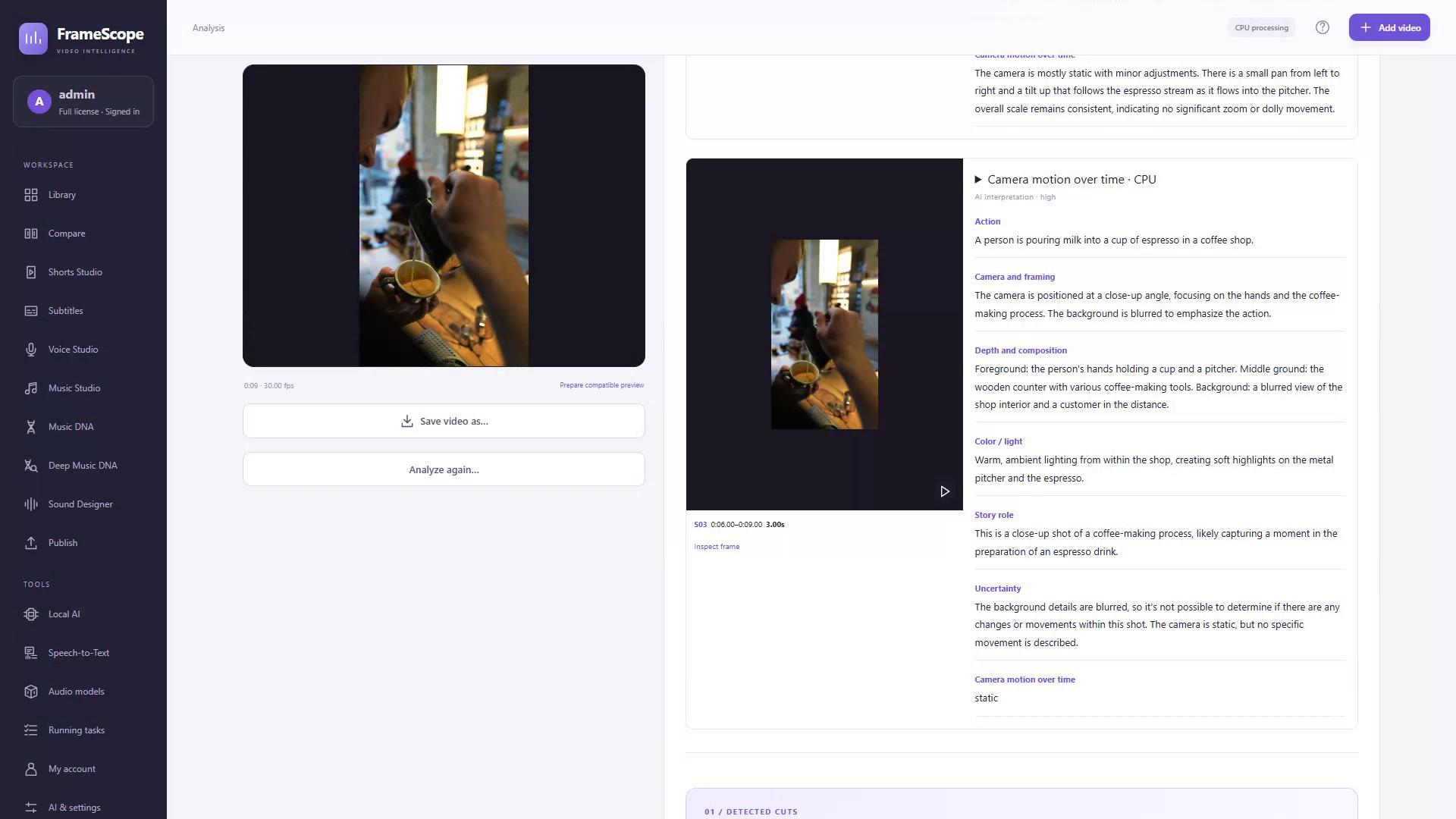
Explore the story, rhythm, camera and sound. Take a specific direction into your next edit.
Explore Analysis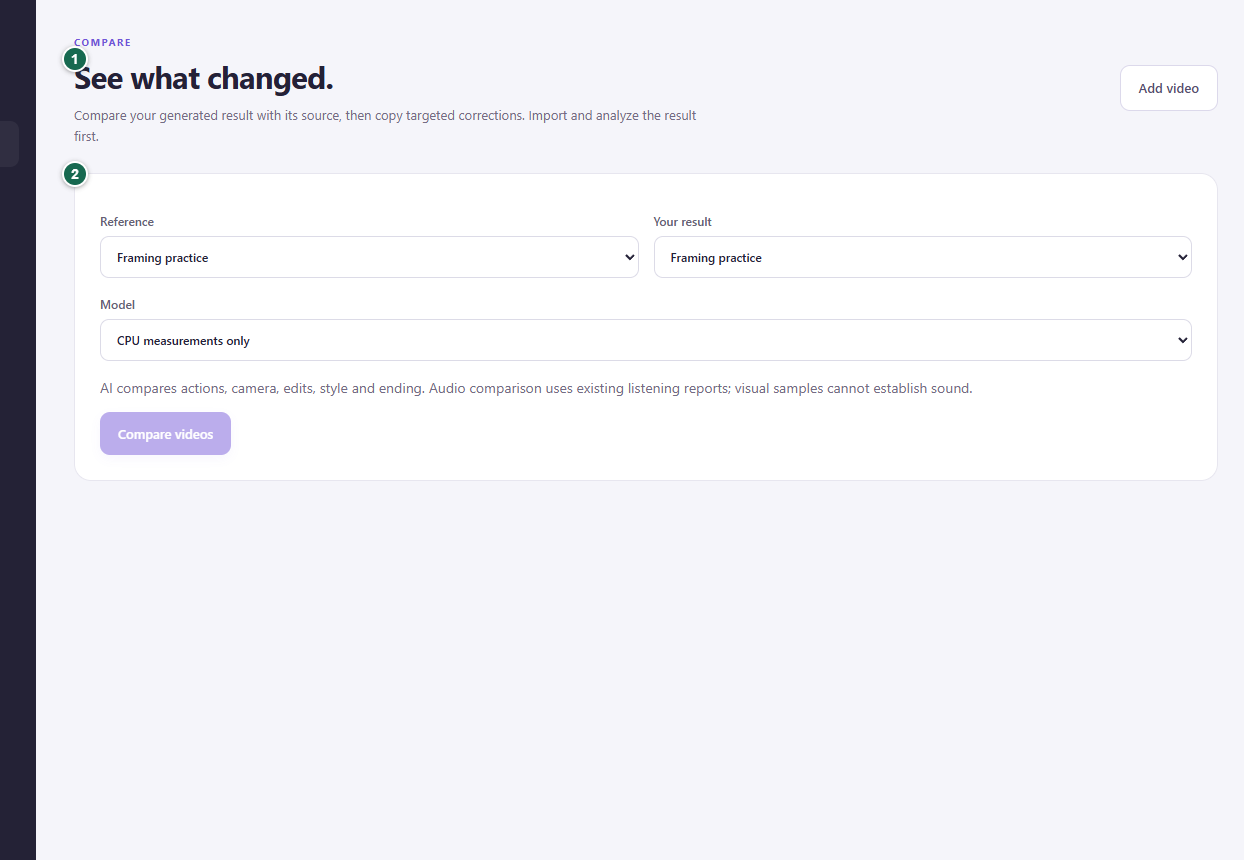
Bring a reference and your own video together. Look closely at the choices behind each one.
Explore Compare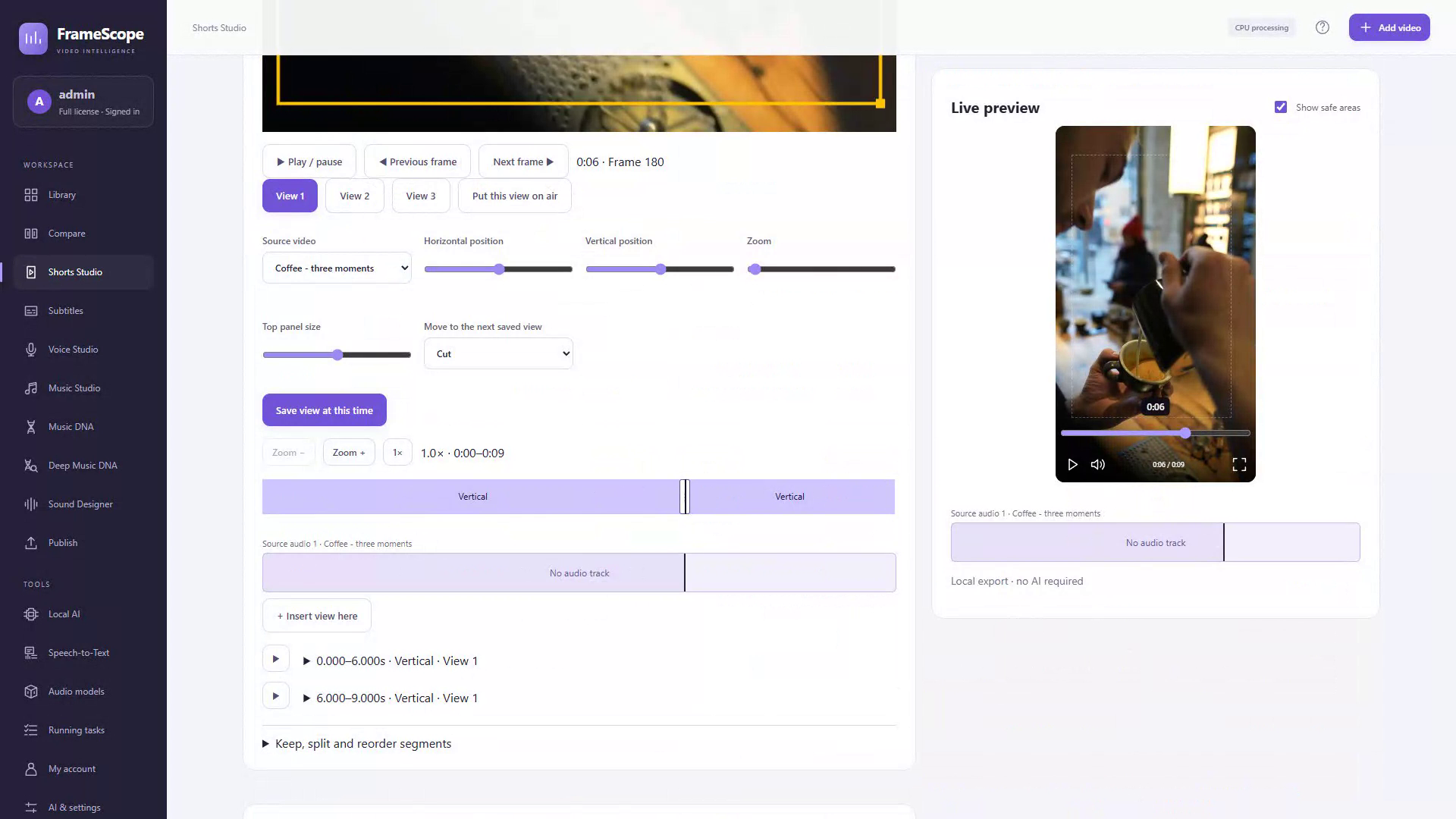
Trim, reframe, review your captions and prepare a vertical version of the footage you already have.
Explore Shorts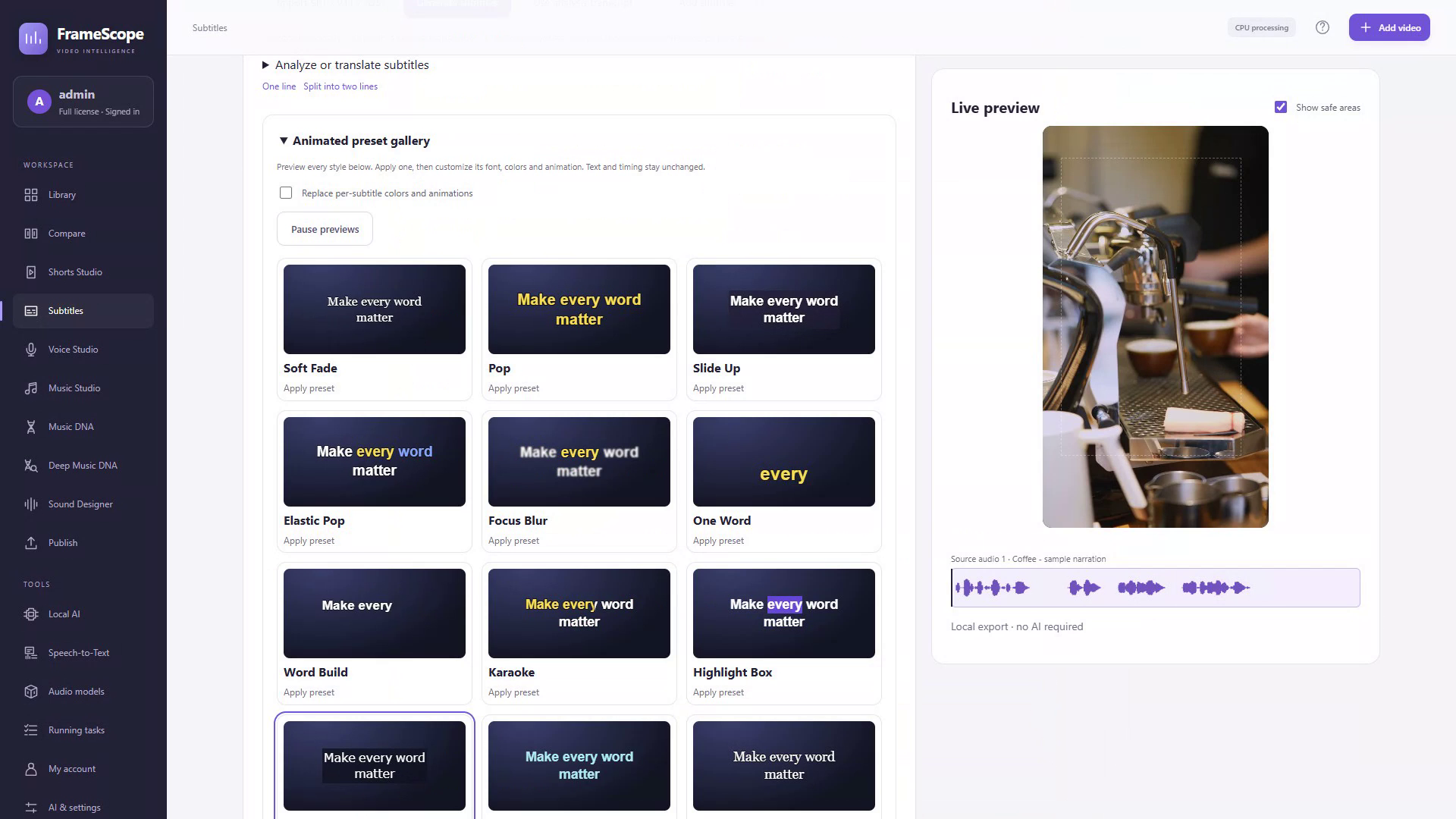
Turn a transcript into captions with a style of their own. Refine the text, timing and movement.
Explore Subtitles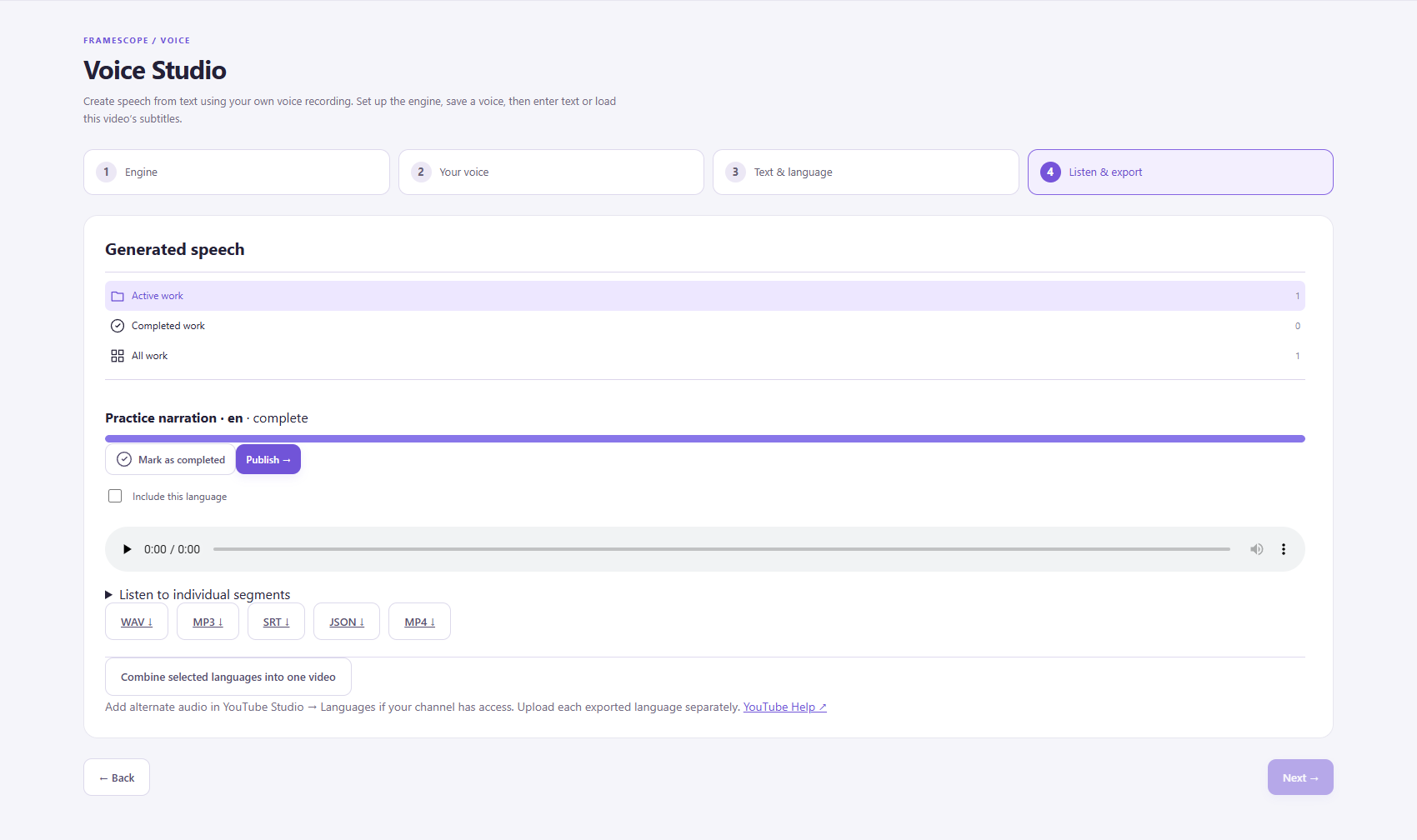
Prepare a translated transcript and a voice track in a supported language. Listen, review and export.
Explore Voice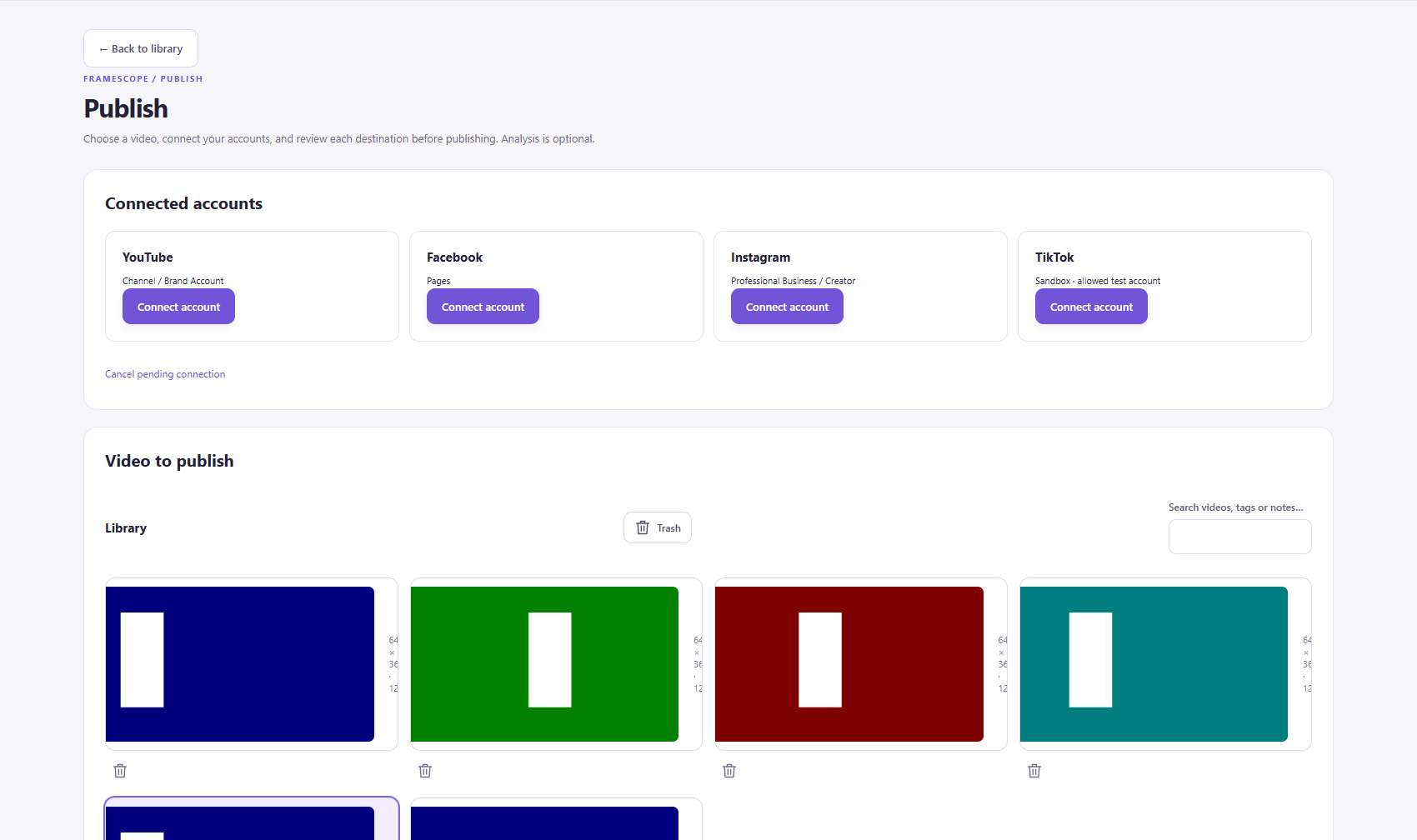
Bring the destination, copy, cover and schedule together. Review the details before you publish.
Explore PublishingActual FrameScope interface captures using demo or practice media. Platform and engine requirements apply.
START WHERE YOU ARE
Keep your everyday editing tools local. Add supported models or your own AI provider for the tasks that need them.
Set up your workspaceYOUR NEXT VIDEO STARTS HERE
Understand the reference. Make the cut. Find the words.
Bring it all together in FrameScope.
PRICING & DEMO
Start with the recurring Demo allowance. The Full license is $19.99, paid once, for one user and one computer at a time.
A recurring allowance to try the workflow.
No card needed to download.
Account sign-in and internet verification apply.
One-time perpetual license.
One user. One computer at a time.
Before tax. External AI provider fees are separate.
Demo is a recurring allowance, not a 30-day free trial. Subtitles include 10 clean source videos plus 10 additional sources with branded Demo exports per period. See the complete Demo terms.
WHAT CHANGES WITH FULL
Optional provider charges and hardware requirements apply to both Demo and Full.
| Included | Demo | Full license |
|---|---|---|
| FrameScope price | $0 | $19.99 one-time, before tax |
| Video Analysis, Compare & Shorts | 10 successful results per listed feature per period | Demo feature quotas removed |
| Voice, Music, DNA tools & Sound Designer | Separate 10-result allowances per listed feature | Demo feature quotas removed |
| Publishing | 10 successful results per period | Demo feature quotas removed |
| Subtitles | 10 clean source videos + 10 additional branded Demo sources | Demo quotas and Demo export watermarks removed |
| Importing media into Library | Does not consume an allowance | Included |
| Optional external AI | Provider fees are separate | Provider fees are separate |
| Account & license verification | Internet required | Internet required |
| Desktop use | Account-based access | One user, one computer at a time |
DEMO / 30
Your account has fixed 30-day periods. When a new period starts, the separate feature allowances renew.
A task reserves a place when it starts and spends it only on successful completion. Failed or cancelled work releases the reservation.
Using one tool does not spend the separate allowance of another. The full terms define source counting and task types.
10 clean source videos, followed by 10 additional source videos with branded Demo exports.
An upload with an uncertain outcome retains its reservation until it is resolved.
PRICE QUESTIONS
FrameScope is a Windows desktop workspace for video analysis, comparison, Shorts editing, subtitles, voice / localization and publishing preparation. Music and audio tools support that workflow.
No. Demo allowances renew in fixed, account-anchored 30-day periods. Each listed feature has a separate allowance of 10 successful results. Subtitles have 10 clean source videos plus 10 additional sources with branded Demo exports. Imports do not spend these allowances.
See the complete terms for counting, reservations and renewals.
A one-time perpetual Full license for one user on one computer at a time. There is no recurring FrameScope subscription. Applicable tax is additional; optional external AI provider fees are separate.
The license does not promise unlimited cloud AI or lifetime updates. Review pricing.
Yes. CPU measurements, Shorts editing and local export work without an AI subscription or downloaded AI models. You can add supported local models or connect your own AI provider when you need them. Account and license verification still require internet access.
The desktop application is for 64-bit Windows 10 or 11. Local AI requirements vary by engine, model and driver. For the documented local Voice engine, allow a supported Ampere-or-newer NVIDIA GPU with at least 8 GB VRAM, 16 GB RAM and 15 GB installation space.
Read the requirements and each engine's checks before installing optional models.
Signing in does not upload your local video library. Optional AI-provider tasks and social publishing send the material needed for the action you select. Provider terms and costs apply. Keep your own backups of local media.
FrameScope can prepare a detailed video-generation prompt based on the analysis. You copy it into an external AI video generator to create the video. The video is rendered in the generator you choose.
FrameScope includes YouTube publishing tools. Facebook Pages and Instagram professional accounts depend on access and platform review; TikTok is subject to tester or sandbox access. Connections require your consent. Local Meta/TikTok schedules require FrameScope and the computer to remain running.
Check the publishing details before planning a release.
Yes. The product captures come from FrameScope's official website and the supplied brand book or public manual. They show genuine interfaces using demo or practice media. The caption-style and framing explorers are labeled interactive website examples.
Language availability depends on the engine you select. Review your transcript and the generated speech before export. The currently documented local Voice engine does not support Georgian speech. See the app and manual for the supported languages.
Use the contact page for support and the refund policy for eligibility and request details. Privacy and deletion requests do not require a paid license.
YOUR NEXT VIDEO STARTS HERE
Understand the reference. Make the cut. Find the words.
Bring it all together in FrameScope.
FRAMESCOPE FOR WINDOWS
Get the Windows beta, sign in, and explore the workspace with Demo.
 Windows 10 / 11 · 64-bit
Current installer:
Optional models and runtimes install separately.
The installer is downloaded from framescope.cloud.
An internet connection is required.
A FEW THINGS TO CHECK
Start with the local essentials. Add optional AI only after checking its requirements.
Install the Windows desktop application. Account and license verification require internet access. Keep space available for your media and exports.
CPU measurements, Shorts editing and local export work without downloaded AI models. Optional models and runtimes are separate installations.
Driver, GPU, RAM and disk requirements vary. The documented Voice engine needs Ampere-or-newer NVIDIA hardware, 8 GB+ VRAM, 16 GB RAM and 15 GB installation space.
This installer is for 64-bit Windows. You can explore every page and demo in this website preview from a modern desktop or mobile browser.
A SIMPLE FIRST STEP
Watch the actual import tutorial, then open a familiar piece of footage in your own workspace.
GETTING STARTED
A short path from your first install to your first reviewed export.
01 / THE SETUP
Download the current 64-bit Windows installer. Open it on a Windows 10 or 11 computer and follow the setup. Sign in to your FrameScope account so the application can verify your access.
Demo provides separate recurring feature allowances. Optional AI models and runtimes install separately from the desktop application.
Understand Demo and Full02 / YOUR FIRST VIDEO
Choose a short video with a few visible changes in composition or timing. Import it into the Library and keep the original on disk.
Importing media does not spend a Demo feature allowance.
03 / PICK THE TASK
04 / LOCAL OR CONNECTED
CPU measurements, Shorts editing and local export do not require an AI subscription or model download. Your local media stays on your disk unless you select an operation that transfers it.
Check the app's engine requirements before downloading models. Supported GPU families, drivers, memory and installation space vary. AUTO can use supported NVIDIA, AMD or Intel GPUs and may use CPU/RAM; CPU processing is slower.
Connect your own OpenAI, Gemini, Claude or xAI account when you choose. The selected operation sends the required material to that provider. Its pricing, terms and limits apply separately from the FrameScope license.
Hardware checks help you plan a setup; they do not guarantee that every model will run well. Review the selected engine's current requirements in the app.
05 / MAKE THE FINISH YOURS
Check AI interpretations against the footage. Read the captions, listen to the voice track and watch the final composition at the intended size. Export locally, then choose the next publishing step.
For social publishing, confirm the account, destination and visibility. Platform access and review apply. Local Meta/TikTok schedules require the app and the computer to remain running.
The complete illustrated manual is included with this preview. It documents the interfaces and workflows in more depth.
HELP & FAQ
Find an answer about the workspace, Demo, your setup or publishing.
All questions
FrameScope is a Windows desktop workspace for video analysis, comparison, Shorts editing, subtitles, voice / localization and publishing preparation. Music and audio tools support that workflow.
No. Demo allowances renew in fixed, account-anchored 30-day periods. Each listed feature has a separate allowance of 10 successful results. Subtitles have 10 clean source videos plus 10 additional sources with branded Demo exports. Imports do not spend these allowances.
See the complete terms for counting, reservations and renewals.
A one-time perpetual Full license for one user on one computer at a time. There is no recurring FrameScope subscription. Applicable tax is additional; optional external AI provider fees are separate.
The license does not promise unlimited cloud AI or lifetime updates. Review pricing.
Yes. CPU measurements, Shorts editing and local export work without an AI subscription or downloaded AI models. You can add supported local models or connect your own AI provider when you need them. Account and license verification still require internet access.
The desktop application is for 64-bit Windows 10 or 11. Local AI requirements vary by engine, model and driver. For the documented local Voice engine, allow a supported Ampere-or-newer NVIDIA GPU with at least 8 GB VRAM, 16 GB RAM and 15 GB installation space.
Read the requirements and each engine's checks before installing optional models.
Signing in does not upload your local video library. Optional AI-provider tasks and social publishing send the material needed for the action you select. Provider terms and costs apply. Keep your own backups of local media.
FrameScope can prepare a detailed video-generation prompt based on the analysis. You copy it into an external AI video generator to create the video. The video is rendered in the generator you choose.
FrameScope includes YouTube publishing tools. Facebook Pages and Instagram professional accounts depend on access and platform review; TikTok is subject to tester or sandbox access. Connections require your consent. Local Meta/TikTok schedules require FrameScope and the computer to remain running.
Check the publishing details before planning a release.
Yes. The product captures come from FrameScope's official website and the supplied brand book or public manual. They show genuine interfaces using demo or practice media. The caption-style and framing explorers are labeled interactive website examples.
Language availability depends on the engine you select. Review your transcript and the generated speech before export. The currently documented local Voice engine does not support Georgian speech. See the app and manual for the supported languages.
Use the contact page for support and the refund policy for eligibility and request details. Privacy and deletion requests do not require a paid license.
Try a shorter search or contact us directly.
Read the getting-started guide or get in touch.
LET’S MAKE IT CLEAR
A setup question, a problem with a workflow, or something you’d like FrameScope to do better.
For setup, account or workflow questions.
support@framescope.cloudFor access, correction and deletion requests.
support@framescope.cloudFrameScope is independent software by Davit Robakidze.
Check the FAQ first2 candidate hard cuts. 3 shots in 9.0 seconds.
Average shot length: 3.00s.
A warm-leaning palette, with saturation around 28/100.
A detailed close-up of an espresso machine as it dispenses coffee into a pitcher.
Timing and color are local measurements. The hook is an AI interpretation. Saved report excerpts from the supplied coffee example.
Your next move
Use roughly 3.0-second shots as a starting rhythm; vary them for your story.
Ask for a warm-leaning palette and use the reference frame to guide color choices.
Start with a focused, dynamic close-up that establishes visual clarity in the action sequence.
Create elsewhere
The complete saved prompt, including the timed sequence, camera, light and continuity directions. FrameScope prepares the prompt; your external AI generator creates the video.
A little room to play
Interactive website style sample. Explore the real preset gallery.
A recurring allowance to try the workflow.
No card needed to download.
Account sign-in and internet verification apply.
One-time perpetual license.
One user. One computer at a time.
Before tax. External AI provider fees are separate.
Demo is a recurring allowance, not a 30-day free trial. Subtitles include 10 clean source videos plus 10 additional sources with branded Demo exports per period. See the complete Demo terms.
FrameScope is a Windows desktop workspace for video analysis, comparison, Shorts editing, subtitles, voice / localization and publishing preparation. Music and audio tools support that workflow.
No. Demo allowances renew in fixed, account-anchored 30-day periods. Each listed feature has a separate allowance of 10 successful results. Subtitles have 10 clean source videos plus 10 additional sources with branded Demo exports. Imports do not spend these allowances.
See the complete terms for counting, reservations and renewals.
A one-time perpetual Full license for one user on one computer at a time. There is no recurring FrameScope subscription. Applicable tax is additional; optional external AI provider fees are separate.
The license does not promise unlimited cloud AI or lifetime updates. Review pricing.
Yes. CPU measurements, Shorts editing and local export work without an AI subscription or downloaded AI models. You can add supported local models or connect your own AI provider when you need them. Account and license verification still require internet access.
The desktop application is for 64-bit Windows 10 or 11. Local AI requirements vary by engine, model and driver. For the documented local Voice engine, allow a supported Ampere-or-newer NVIDIA GPU with at least 8 GB VRAM, 16 GB RAM and 15 GB installation space.
Read the requirements and each engine's checks before installing optional models.
Signing in does not upload your local video library. Optional AI-provider tasks and social publishing send the material needed for the action you select. Provider terms and costs apply. Keep your own backups of local media.
FrameScope can prepare a detailed video-generation prompt based on the analysis. You copy it into an external AI video generator to create the video. The video is rendered in the generator you choose.
FrameScope includes YouTube publishing tools. Facebook Pages and Instagram professional accounts depend on access and platform review; TikTok is subject to tester or sandbox access. Connections require your consent. Local Meta/TikTok schedules require FrameScope and the computer to remain running.
Check the publishing details before planning a release.
Yes. The product captures come from FrameScope's official website and the supplied brand book or public manual. They show genuine interfaces using demo or practice media. The caption-style and framing explorers are labeled interactive website examples.
Language availability depends on the engine you select. Review your transcript and the generated speech before export. The currently documented local Voice engine does not support Georgian speech. See the app and manual for the supported languages.
Use the contact page for support and the refund policy for eligibility and request details. Privacy and deletion requests do not require a paid license.
YOUR NEXT VIDEO STARTS HERE
Understand the reference. Make the cut. Find the words.
Bring it all together in FrameScope.